The past months I’ve been very busy in removing data in one of the production environments I help manage. This data is part of a SaaS solution, and any proper SaaS provider removes all data “at some point” after a customer is offboarded (or in Europe asks for a GDPR deletion).
When somebody thinks about data deletion in a SaaS world, your initial thoughts go towards relational (e.g. Azure SQL), no-SQL (e.g. Cosmos DB) and actual documents/files (e.g. Azure Blob Storage). However, these days we also use search indexes or even complete AI models where data might have to be purged from if not correctly anonymized.
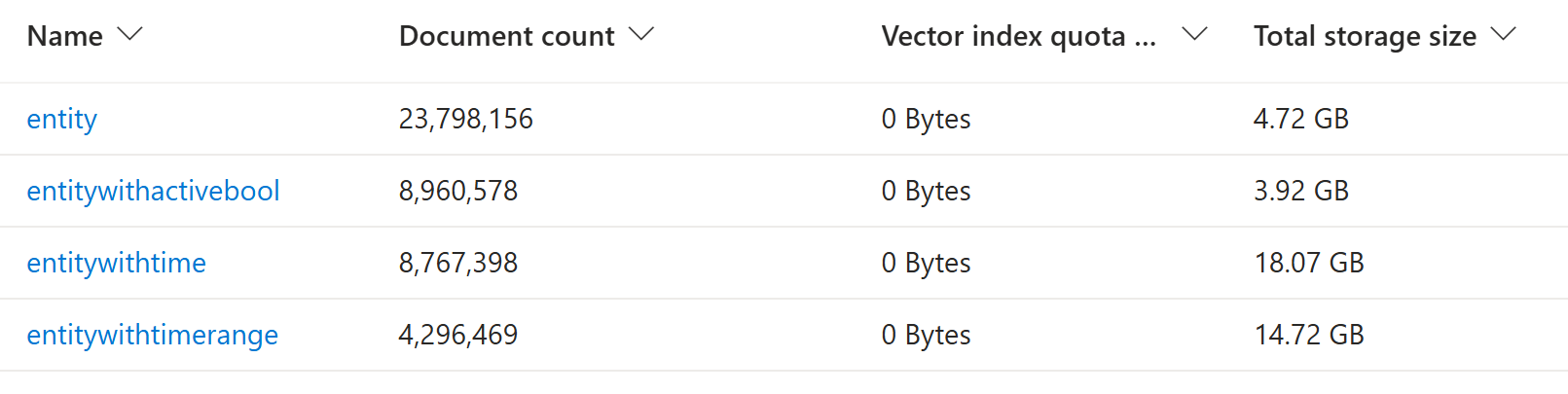
Today’s journey brings us to an Azure AI Search service with 4 indexes:
Each index has its own fields, but they all shared the same pattern:
| Field name | Type | Retrievable | Filterable | Sortable | Facetable | Searchable |
|---|---|---|---|---|---|---|
| Id | String | X | ||||
| Display | String | X | X | |||
| SearchField | String | X | X | |||
| TenantId | String | X | X | X |
The challenge
The challenge was clear: remove the data from an inactive customer (tenant). In a proper SaaS solution, usually all tenant-specific data is marked with an identifier like TenantId.
Looking at the number of documents, iterating over every single one of them is clearly NOT an option. Also, even though the TenantId is part of the tracked data, it’s not searchable.
The good news
Luckily, the team that initially set up this solution made the TenantId both facetable and filterable.
Facets are often used for search result navigation.
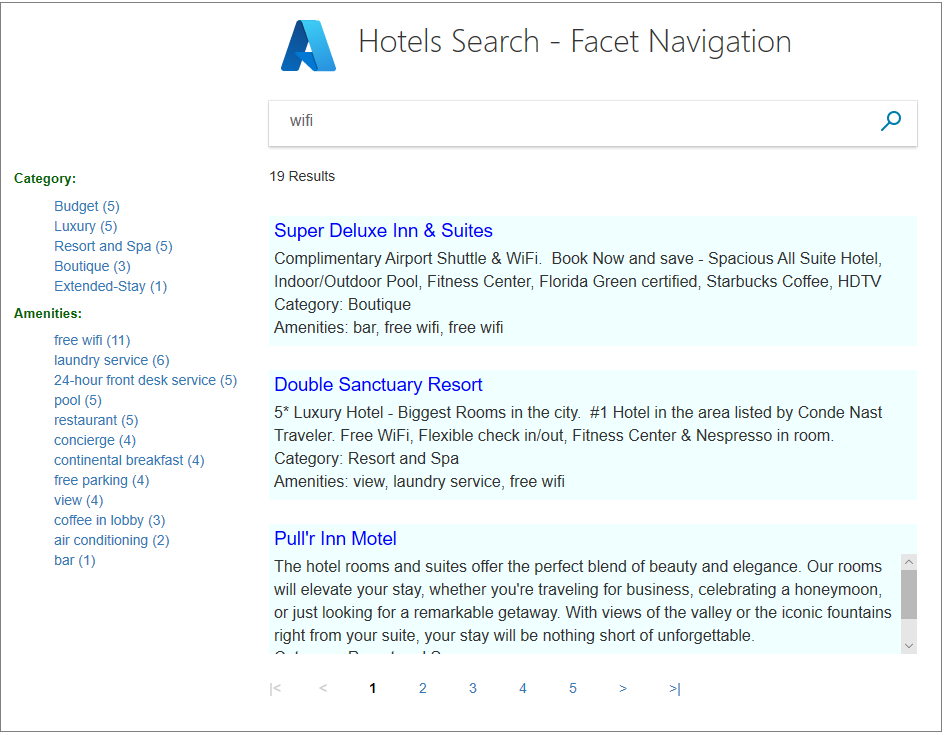
While this could be used, the filter approach seems more correct as we want to filter all data (and not slice the results) queried for our delete action.
You can verify your filter in the Azure portal by switching to the JSON view in the search explorer on your Azure AI search index. The below query checks for TenantId = 0.
{
  "search": "*",
  "count": true,
  "filter": "TenantId eq 0"
}
The solution
Since I had to iterate and delete quite some documents over multiple tenants, I went with a simple console C# application. For tools like this, AI can be a good help to quickstart your code.
Note: Batch operations are limited to a 1000 records, hence we filter per 1000.
private async Task DeleteDocumentsByTenantAsync(SearchClient client, string indexName)
{
    // TenantId is filterable but not searchable, so we filter on it and retrieve all fields for the dump
    var options = new SearchOptions
    {
        Filter = $"TenantId eq {Constants.TenantId}",
        Size = 1000
    };

    int totalDeleted = 0;
    int batchNumber = 0;
    int batchCount;

    do
    {
        batchNumber++;
        Console.WriteLine($"  Fetching batch {batchNumber} with TenantId = {Constants.TenantId} from '{indexName}'...");

        var documents = new List<SearchDocument>();

        //var response = await client.SearchAsync<SearchDocument>("*", options);
        var response = client.Search<SearchDocument>("*", options);
        await foreach (var result in response.Value.GetResultsAsync())
        {
            documents.Add(result.Document);
        }

        batchCount = documents.Count;
        Console.WriteLine($"  Found {batchCount} documents in batch {batchNumber}.");

        if (batchCount == 0)
            break;

        // here I made a dump so we could even restore documents, otherwise you could limit the fields returned

        var keysToDelete = documents.Select(d => d["Id"].ToString()).ToList();

        var deleteBatch = IndexDocumentsBatch.Delete("Id", keysToDelete);
        await client.IndexDocumentsAsync(deleteBatch);

        totalDeleted += batchCount;
        Console.WriteLine($"  Deleted {totalDeleted} documents so far from '{indexName}'...");

    } while (batchCount == 1000);
}
Note: As you might notice, we switched from
SearchAsyncback to the synchronousSearch. Since we’re running in a console application, having a thread being blocked is less of an issue. The main reason for switching is that based on the document size, the search could still be streaming back while the deserialization already happened resulting in an arror.
Note: While you can certainly run this from your local device, you need to be aware of roundtrip times (per query) in case of the number of records I ended up deleting. For that reason I opted to spin up a small VM in Azure in the same region, which made the tool fly.
Bonus
After purging all inactive tenants, we were able to downsize to a single partition (based on data size) with two search replicas (providing 99.9% availability for read), halving our costs.
For more info on correctly sizing your Azure AI Search, please check the documentation.